
Chat and tools
The transcript is the heart of the overlay. Prompts go in, agent responses stream back, tool calls render as compact pills, and permissions interrupt for your call.
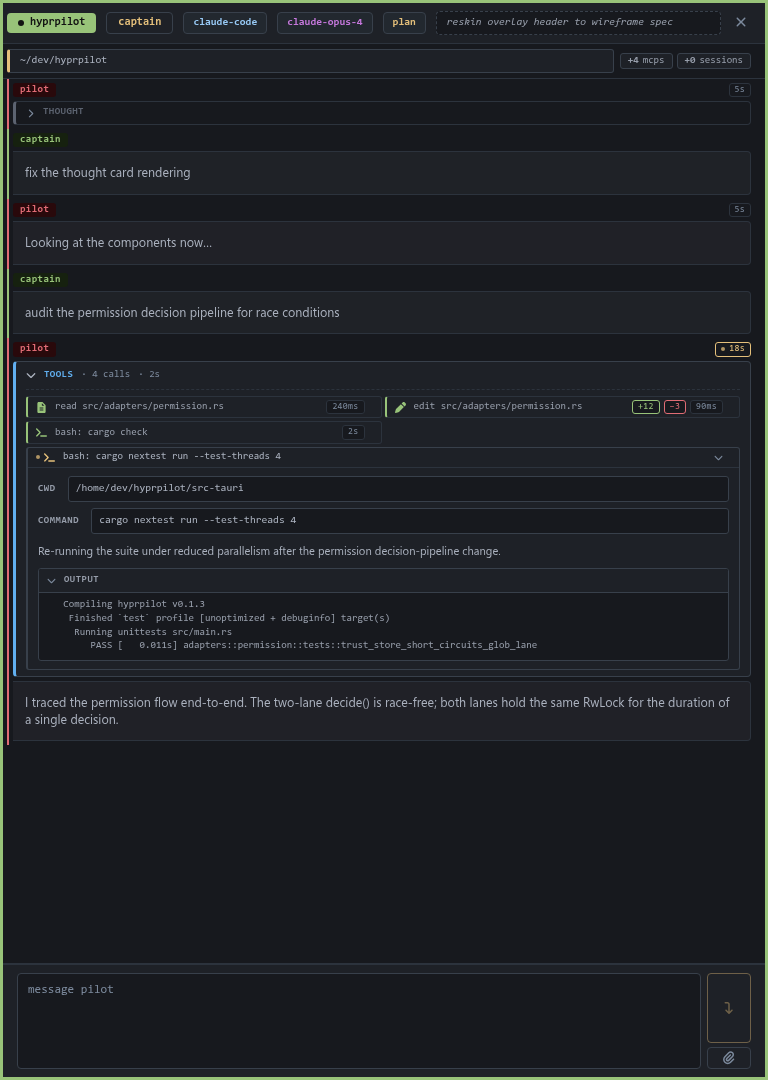
Tool pills
Every tool the agent invokes shows up as a pill with:
- Icon + color per tool family — read, write, bash, search, terminal.
- Title showing the tool name + key argument (e.g.
bash: cargo check,edit: src/main.rs). - State — running, completed, failed, cancelled — with a matching animation.
- Stats — diff sizes (
+12 −3), durations (850ms,2.4s), match counts.
Running tools auto-expand to show their fields and live output; completed ones collapse back to a single-line pill. Click a pill to toggle.
Permission flow
When an agent wants to do something destructive or sensitive — running a shell command, editing a file, exiting plan mode — it asks first.
Lightweight requests show up as an inline row above the composer:
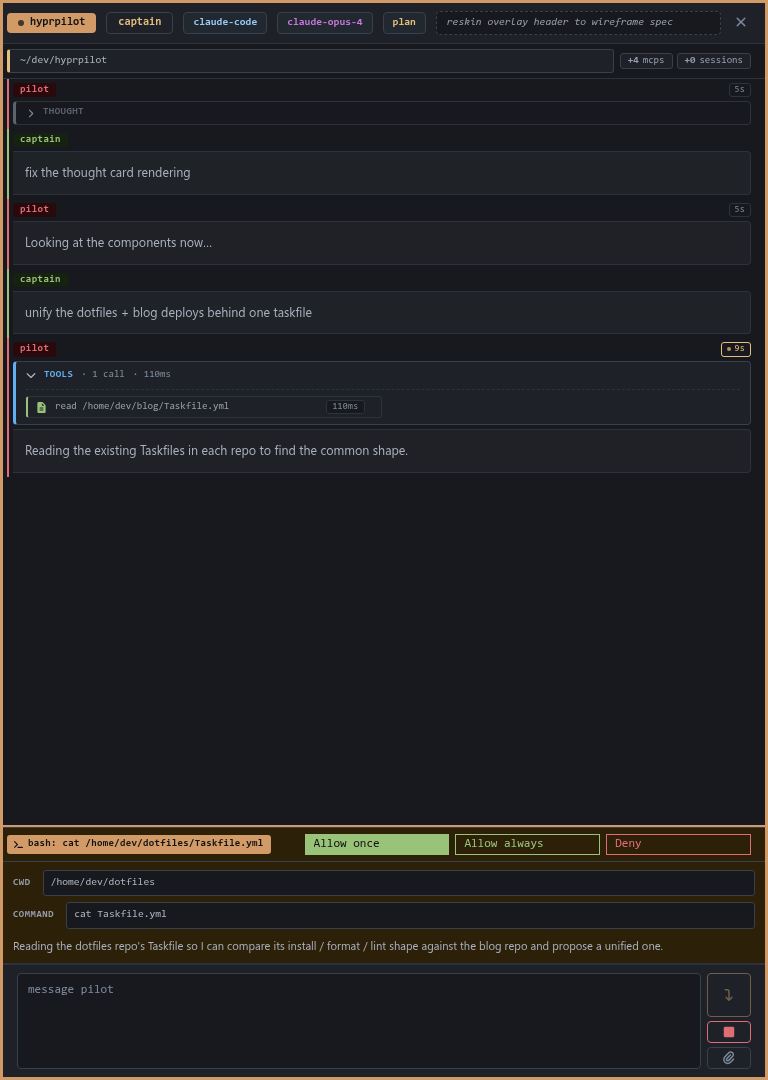
Heavier ones (plan exits, big diffs) open a modal so you can read the full body before deciding:
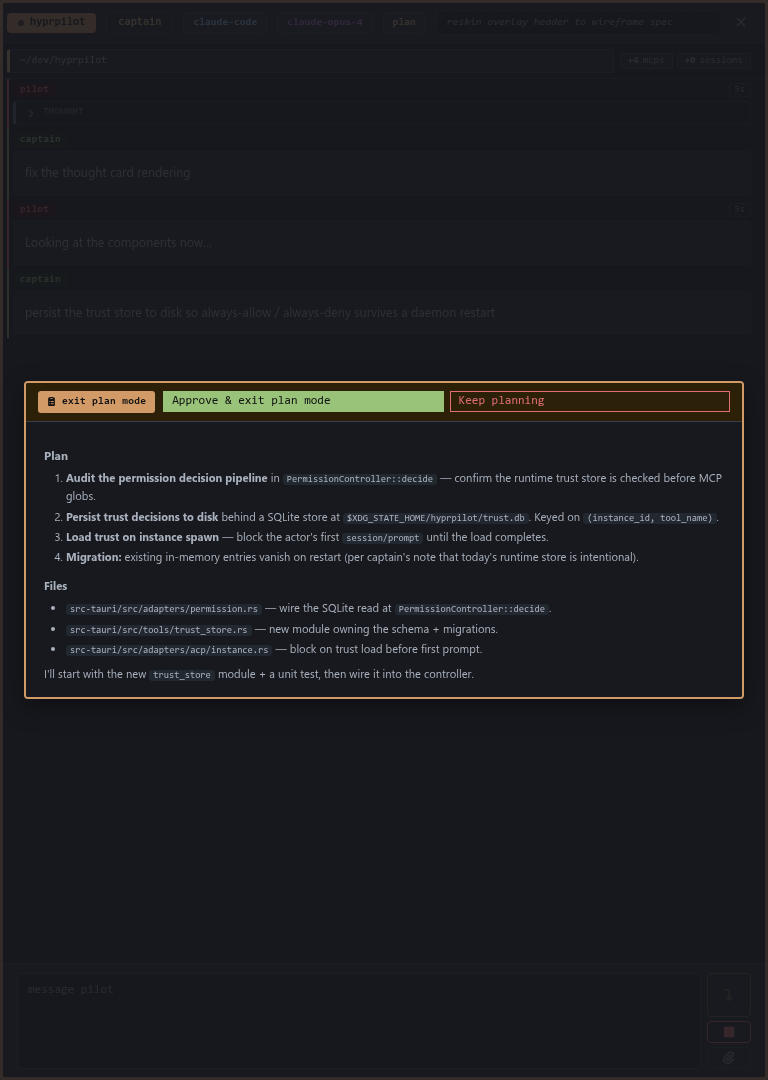
Either way you get four options:
- Allow once — runs this call only.
- Allow always — remembers it; future identical requests auto-approve.
- Deny once — rejects this call only.
- Deny always — remembers a deny rule for next time.
"Always" decisions are remembered for the lifetime of the focused instance. They reset on shutdown.
Multi-instance
Run as many agents at once as you want. The header shows the focused instance's profile · agent · model · cwd · mode · mcps. Click any chip to jump to the matching palette leaf.
Ctrl+K → instances switches focus between live agents. Spawning a fresh one keeps the previous focus warm in the background.
Composer
The composer takes plain text plus two kinds of attachments:
- Images — drag-drop from your file manager, or
Ctrl+Pto paste from clipboard. - Skills —
Ctrl+K → skills(or type#<name>in the composer); the skill content rides on your next prompt as context.
Enter submits. If a turn is already running, the prompt queues above the composer — you can edit or delete queued items before they fire. The queue drains automatically as the agent finishes.